Phone Privacy Guide – Manage Caller ID, App Permissions & Spam Protection
Your smartphone contains some of your most sensitive information—contacts, photos, messages, banking apps, location history, emails, and payment details. Protecting this information is not only about installing antivirus software. Caller ID settings, app permissions, spam protection, microphone access, location controls, and privacy monitoring all play an important role.
A few changes in your phone settings can significantly improve privacy while also reducing spam calls, suspicious apps, and unwanted access to personal information.
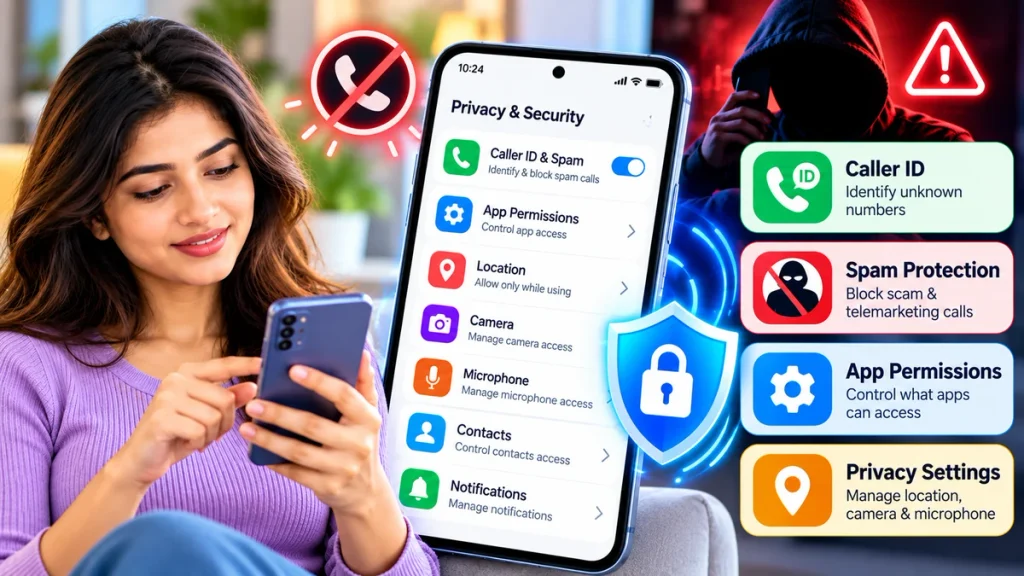
Important Phone Privacy Settings
| Privacy Feature | What It Controls | Why It Matters |
|---|---|---|
| Caller ID Protection | Unknown and business calls | Helps identify suspicious callers |
| Spam Call Filtering | Unwanted calls | Reduces scam and telemarketing calls |
| App Permissions | Camera, microphone, contacts, location | Limits unnecessary data access |
| Privacy Dashboard | Recent permission activity | Shows which apps accessed sensitive data |
| Call Blocking | Specific phone numbers | Stops repeated unwanted callers |
| Safe App Controls | App installations and permissions | Helps reduce malicious app risks |
1. Manage Caller ID and Spam Protection
Caller ID can help you decide whether an incoming call is worth answering.
On supported Android phones using Phone by Google, Caller ID and spam protection can display information about callers outside your contacts and warn about suspected spam numbers. Users can also enable Filter spam calls to automatically filter certain unwanted calls.
To review the settings:
Phone App → Settings → Caller ID & Spam
You may find options such as:
- See Caller ID & Spam
- Filter Spam Calls
- Block or Report Spam
- Caller ID Announcement
Google also says numbers outside your contact list may be sent to Google to help identify businesses or potential spam, while numbers stored in your contacts are not collected for that purpose.
2. Review App Permissions Regularly
Apps may request permission to access:
- Camera
- Microphone
- Contacts
- Location
- SMS
- Call logs
- Photos and videos
- Files
- Notifications
Not every app needs all of these permissions.
On Android, permissions can be reviewed through:
Settings → Apps → Select App → Permissions
You can usually choose options such as Allow, Don’t Allow, Allow only while using the app, or Ask every time, depending on the permission.
For example, a photo-editing app may need access to selected photos but probably does not need permission to manage phone calls.
3. Check the Android Privacy Dashboard
Android’s Privacy Dashboard can show which apps recently accessed sensitive permissions such as location, camera, or microphone.
On supported Android versions:
Settings → Security & Privacy → Privacy → Privacy Dashboard
Android 13 can show permission activity for the previous seven days, while Android 12 may show activity from the previous 24 hours.
If you see an app using your microphone, camera, or location when you were not expecting it, review that app’s permissions.
4. Disable Unnecessary Camera and Microphone Access
Camera and microphone permissions deserve extra attention because they can access highly sensitive information.
Android allows users to disable device-wide camera or microphone access through privacy controls.
For individual apps, consider allowing access only while the app is in use.
Apps such as video-calling services naturally need camera and microphone access. A calculator or basic wallpaper app normally has little reason to request them.
5. Protect Yourself From Spam and Fraud Calls
Spam callers often use urgency to convince people to share information or transfer money.
Be suspicious of calls demanding:
- OTPs
- UPI PINs
- ATM PINs
- Banking passwords
- CVV numbers
- Remote phone access
- Immediate payments
Caller ID and spam warnings can help, but they are not perfect. A fraudster may use spoofed numbers or a number that has not yet been reported.
If a call seems suspicious, disconnect and independently contact the company using its official website, mobile app, or published customer-care number.
6. Use iPhone Call Screening and Spam Controls
iPhone users also have privacy and call-filtering options.
Apple’s current Phone settings can identify supported business callers, use compatible caller-identification apps, screen unknown callers, silence certain unknown calls, and filter calls identified as spam by supported carriers.
These settings are available under:
Settings → Apps → Phone
Depending on your iOS version and region, available options may include call identification, unknown caller screening, filtering, and blocked contacts.
7. Check App Privacy Activity on iPhone
Apple’s App Privacy Report can provide visibility into how applications use certain permissions and which network domains they contact.
If an app appears to access your data unexpectedly, Apple recommends reviewing or revoking its privacy permissions.
This can be useful when evaluating apps that request access to sensitive data.
8. Be Careful With Apps From Unknown Sources
Avoid installing random APK files or apps sent through unknown links, messages, or pop-up advertisements.
Android specifically warns that harmful apps may ask users to change restricted settings or grant powerful permissions that could put personal information at risk.
Download apps from trusted sources and check:
- Developer name
- Number of downloads
- Recent reviews
- Requested permissions
- Privacy policy
- Subscription terms
Frequently Asked Questions
Should I allow Caller ID and spam protection?
It can be useful for identifying businesses and suspected spam calls. However, users should review how the service handles call-related data before enabling it.
Which phone permissions should I review first?
Start with microphone, camera, location, contacts, SMS, phone, and call-log permissions because these can provide access to sensitive information.
Can spam protection block every scam call?
No. Spam databases may miss newly created or spoofed numbers. Caller warnings should be treated as an additional safety layer rather than a guarantee.
Should every app have location access?
No. Only apps that genuinely need location features should usually have access. Where available, choose Allow only while using the app instead of permanent access.
Conclusion
Good phone privacy comes from combining caller ID protection, spam filtering, careful app permissions, privacy monitoring, safe app installation, and fraud awareness.
Review your phone settings regularly and remove permissions that apps no longer need. Whether you use Android or iPhone, these simple privacy controls can help reduce unwanted calls, limit unnecessary data access, and make your smartphone safer for everyday use.