CapCut Video Editing App – Edit Videos, Add Effects & Create Reels Easily
Creating professional-looking videos no longer requires expensive desktop software or advanced editing skills. With mobile video editing apps such as CapCut, users can trim clips, add music, apply transitions, create subtitles and prepare social-media videos directly from a smartphone or computer.
The CapCut Video Editing App is especially popular among people creating Instagram Reels, YouTube Shorts, promotional videos, travel clips and other short-form content. It combines basic editing tools with advanced options such as keyframes, chroma key, stabilization, background removal and automatic captions.
CapCut’s current Android listing also highlights support for 4K video exports at up to 60 fps, along with features such as motion tracking, text-to-speech and multi-track editing.
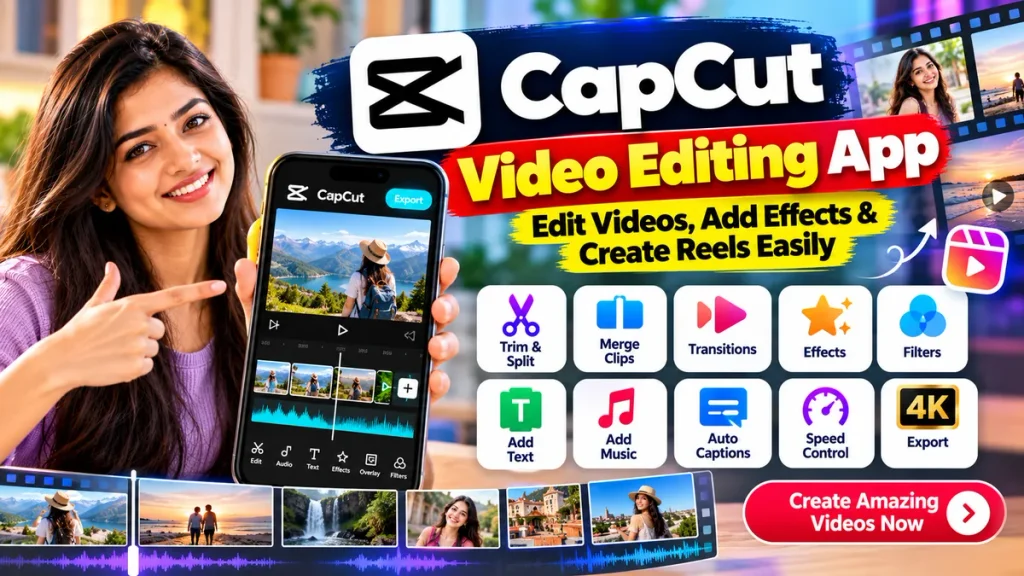
This guide explains how to use CapCut, edit videos, add effects and transitions, create Reels and export finished videos.
CapCut Video Editor at a Glance
| Feature | What You Can Do |
|---|---|
| Trim & Split | Remove unwanted sections and cut clips |
| Merge Clips | Combine multiple videos into one project |
| Transitions | Add smooth changes between clips |
| Filters & Effects | Change the visual style of your video |
| Auto Captions | Generate subtitles from spoken audio |
| Text to Speech | Convert written text into voice |
| Background Removal | Remove or isolate video backgrounds |
| Chroma Key | Remove selected background colours |
| Keyframes | Create custom motion and animation |
| Speed Control | Slow down or speed up video clips |
| Music & Audio | Add music, effects and extracted audio |
| Reels Editing | Create vertical 9:16 social videos |
| Export | Supports high-resolution output, including 4K on supported devices |
What Is CapCut?
CapCut is an all-in-one video editing platform designed for beginners as well as more experienced creators.
The editor is available across mobile, desktop and browser-based workflows, although specific features and availability can vary by device, account and region.
Users can perform common editing tasks such as:
- Cutting videos
- Joining clips
- Cropping and resizing
- Adding text
- Adding music
- Applying transitions
- Adjusting speed
- Adding filters
- Generating captions
- Removing backgrounds
- Exporting videos for social media
CapCut also provides ready-made templates, stock media and AI-assisted editing tools.
The Google Play listing currently describes CapCut as free to install with in-app purchases, meaning some tools, effects or services may require payment depending on the feature and region.
How to Start Editing a Video in CapCut
The basic editing process is beginner-friendly.
Step 1: Create a New Project
Open CapCut and select New Project or Create Project.
Choose the photos and video clips that you want to edit.
Once imported, the clips appear on the editing timeline.
Step 2: Arrange Your Clips
Move the clips into the order you want.
For a short Reel, place your strongest or most interesting clip near the beginning so viewers understand the video quickly.
CapCut’s online editor also lets users upload media and arrange it on a timeline before applying additional edits.
How to Trim and Split Videos
Removing unnecessary footage is one of the most important editing steps.
Tap or select a clip on your timeline.
Move the beginning or ending handles to shorten it.
If you want to remove something from the middle of a clip, move the playhead to the required position and choose Split.
You can then delete the unwanted portion.
CapCut currently supports tools for trimming, splitting, merging and changing playback speed.
Try to remove long pauses and unnecessary scenes, especially when making Reels or Shorts.
Add Transitions Between Clips
Transitions help one scene move smoothly into another.
Tap the transition icon between two clips.
Depending on your version of CapCut, you may find transition categories such as:
- Blur
- Slide
- Split
- Mask
- Camera-style transitions
- Motion graphics
CapCut’s current editing resources list several transition categories and effects that can be applied between clips.
Do not use a different dramatic transition after every clip. Simple transitions usually look more professional.
Add Effects and Filters
CapCut provides visual effects that can change the overall appearance of a video.
Available categories can include effects such as:
- Blur
- Glitch
- Retro
- Lens effects
- Lighting effects
- Distortion
- Trending visual effects
CapCut says its mobile editor includes hundreds of effects and regularly updated filters.
Filters can also be used to adjust the mood of the video.
You can further improve the image manually by adjusting properties such as brightness, contrast and other colour settings.
Add Text to Your Video
Text is especially important for Reels because many people watch short videos without sound.
Open the Text section and add your required words.
You can normally adjust:
- Font
- Size
- Position
- Colour
- Animation
- Text effects
- Duration
Keep text large enough to read comfortably on a mobile phone.
Avoid placing important text too close to the top or bottom edges because Instagram and other apps may cover those areas with interface buttons.
Use Auto Captions
One of CapCut’s most useful features is Auto Captions.
Instead of manually typing every sentence, the editor can analyse speech and generate subtitles.
CapCut currently lists automatic speech recognition and subtitles among its AI-powered editing features.
After captions are generated, check them carefully.
Automatic transcription can make mistakes with:
- Names
- Regional accents
- Mixed languages
- Brand names
- Technical words
Correct any errors before exporting the video.
Add Music and Sound Effects
Music can make a simple video feel more engaging.
Open the Audio section to explore available music and sound effects, or add your own supported audio.
CapCut also lets users extract audio from existing video clips. Its current app listing describes access to music clips, sound effects and audio extraction tools.
When using music for commercial or monetized content, make sure you have the right to use the selected track.
Do not assume every trending audio clip is automatically cleared for every type of commercial use.
Change Video Speed
Speed adjustment is useful for creating:
Slow-motion videos
or
Fast-paced montages
CapCut’s mobile editor currently supports video speed adjustments ranging from very slow playback to highly accelerated playback, along with speed curves and optical-flow-assisted slow motion on supported features.
Use slow motion for important moments and faster playback when you want to compress repetitive footage.
Use Keyframes for Advanced Editing
Keyframes allow you to control how an element changes over time.
For example, you can make an image:
- Zoom in
- Move across the screen
- Rotate
- Change position gradually
CapCut currently lists keyframe animation among its advanced editing tools.
Beginners do not need keyframes for every project, but learning them can make edits look more dynamic.
Background Removal and Chroma Key
CapCut also provides tools for working with backgrounds.
Background Removal can automatically separate a subject from the background in supported footage.
Chroma Key lets you remove a selected colour, commonly used for green-screen editing.
Both features are included among CapCut’s current editing capabilities.
These tools are useful for product videos, educational clips, reaction videos and creative social-media edits.
How to Create Instagram Reels in CapCut
CapCut is well suited for vertical videos.
For Instagram Reels, use a 9:16 aspect ratio.
CapCut’s official Reel-editing guidance recommends setting footage to 9:16 and then arranging clips on the timeline.
A simple Reel workflow is:
- Import your clips.
- Select 9:16 format.
- Trim unnecessary scenes.
- Add transitions.
- Add music.
- Generate captions.
- Add text or stickers.
- Apply filters or effects.
- Preview the full Reel.
- Export the final version.
Try to make the opening few seconds visually interesting, particularly for short-form social content.
Best Export Settings for Reels
Once editing is complete, select Export.
CapCut provides controls for settings such as resolution, bitrate and frame rate depending on the platform and version.
For many Instagram Reels, a practical starting point is:
Resolution: 1080 × 1920
Aspect Ratio: 9:16
Frame Rate: Match your original footage where possible
Format: MP4 when available
Higher-resolution exports such as 4K can be useful for certain projects, but they also create larger files and may not always provide a noticeable advantage after social-media compression.
Is CapCut Good for Beginners?
Yes. One reason CapCut became popular is its combination of basic editing tools and more advanced features in the same interface.
A beginner can start with:
Trim → Text → Music → Transition → Export
Then gradually learn:
Keyframes → Chroma Key → Background Removal → Speed Curves → Advanced Effects
CapCut’s official editor description specifically positions the software as beginner-friendly while also providing advanced tools for experienced editors.
Frequently Asked Questions
1. What is CapCut used for?
CapCut is used to edit videos, trim clips, add music, create captions, apply effects and transitions, make Reels and Shorts, and export completed videos.
2. Is CapCut free?
CapCut can be installed and used with free functionality, while the current Android listing also includes in-app purchases. Some tools or assets may therefore require payment.
3. Can CapCut create Instagram Reels?
Yes. CapCut supports vertical 9:16 editing, transitions, effects, captions and other tools useful for Instagram Reels.
4. Does CapCut have automatic subtitles?
Yes. CapCut includes an Auto Captions feature that can generate subtitles using speech recognition.
5. Can I remove a video background in CapCut?
Yes. CapCut currently offers automatic background-removal tools as well as chroma-key functionality.
6. Can CapCut export 4K video?
The current Android app listing states that CapCut supports exports up to 4K at 60 fps on supported devices and workflows.
7. Does CapCut support slow-motion videos?
Yes. CapCut provides speed controls, speed curves and smooth slow-motion tools.
8. Is CapCut available on computers?
Yes. CapCut provides desktop and browser-based editing options in addition to its mobile editor.
Conclusion
The CapCut Video Editing App provides a wide range of tools for people who want to edit videos and create social-media content without learning complicated professional software.
Beginners can quickly trim clips, combine videos, add music, insert text and apply transitions, while more experienced creators can use features such as keyframes, chroma key, stabilization, background removal, speed curves and automatic captions.
For Instagram creators, CapCut makes it easy to prepare 9:16 Reels, add subtitles and effects, and export finished content for uploading to social platforms.
The best approach is to keep your edit simple at first. Focus on clean cuts, readable captions, balanced audio and a strong opening before adding too many effects.
With regular practice, CapCut can be a convenient tool for creating Reels, Shorts, tutorials, travel videos, promotional clips and other social-media content directly from your phone or computer.