Best Voice Typing Apps – Speak and Convert Your Voice into Text Easily
Typing long messages, notes, assignments or documents on a phone can take a lot of time. Voice typing apps make the process easier by allowing you to speak naturally while the app converts your voice into written text.
Speech-to-text technology can be useful for students taking notes, professionals writing emails, content creators preparing drafts, journalists recording interviews and anyone who simply finds speaking faster than typing.
Popular options such as Gboard, Microsoft SwiftKey, Apple Dictation, Google Docs Voice Typing, Otter.ai and Notta offer different kinds of voice-to-text features. Some work directly inside your phone keyboard, while others are designed for longer recordings, meetings, lectures and interviews.
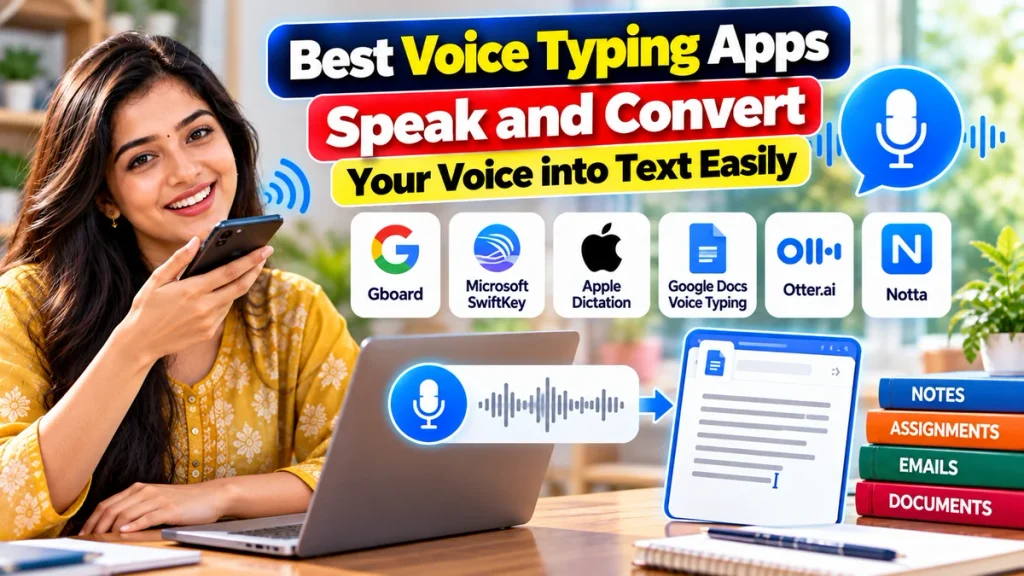
In this guide, we compare some of the best voice typing apps and explain how to choose the right speech-to-text tool for your needs.
Best Voice Typing Apps at a Glance
| App / Tool | Best For | Platform | Free Option |
|---|---|---|---|
| Gboard | Everyday mobile voice typing | Android, iPhone/iPad | Yes |
| Microsoft SwiftKey | Voice + keyboard typing | Android, iOS | Yes |
| Apple Dictation | iPhone and iPad users | iPhone, iPad | Built-in |
| Google Docs Voice Typing | Long documents | Web/Desktop | Yes |
| Otter.ai | Meetings, interviews & lectures | Android, iOS, Web | Free option available |
| Notta | Recording & transcription | Android, iOS, Web | Free plan available |
1. Gboard – Best Voice Typing App for Android
Gboard, Google’s keyboard app, is one of the easiest options for converting speech into text on Android phones.
You can use Gboard voice typing in most apps where a keyboard is available, including messaging apps, email, notes and search boxes.
To begin voice typing, open a text field and tap the microphone icon on the Gboard keyboard. Once “Speak now” appears, start talking and your words will be converted into text.
Google also allows voice commands for punctuation such as:
- Full stop
- Comma
- Question mark
- Exclamation mark
- New line
- New paragraph
Gboard can also be configured with multiple keyboard languages, although voice-to-text support is not available for every language. (support.google.com)
Some newer Pixel devices offer Advanced Voice Typing, which can automatically add punctuation, insert emojis and perform commands such as deleting or clearing text while dictating. (support.google.com)
Best for: Everyday WhatsApp messages, emails, notes and quick voice-to-text typing.
2. Microsoft SwiftKey – Good for Voice and Keyboard Typing Together
Microsoft SwiftKey is another popular keyboard app that includes voice typing.
Its current voice-input system includes Multimodal Voice Typing, which allows users to dictate while keeping the keyboard visible. This means you can speak and type at the same time instead of switching completely between voice and manual input. (support.microsoft.com)
To start:
- Open an app where you can type.
- Bring up SwiftKey.
- Tap the microphone icon.
- Start speaking.
- Your speech will appear as text.
SwiftKey also offers standard keyboard features such as predictive typing, autocorrection and gesture typing.
Microsoft currently notes that its own Multimodal Voice Typing support is English-focused, while Android users can switch to Google’s voice-input method through SwiftKey settings for the older voice-typing experience. (support.microsoft.com)
Best for: Users who regularly switch between voice dictation and normal typing.
3. Apple Dictation – Best Built-In Option for iPhone
iPhone users do not necessarily need to install a separate voice typing app.
Apple provides Dictation directly inside iOS.
After enabling Dictation under:
Settings → General → Keyboard → Enable Dictation
you can tap the microphone button on the keyboard and start speaking.
One useful feature is that the keyboard can remain available while you dictate, allowing you to move easily between voice input and normal typing.
Apple says Dictation can be processed directly on the iPhone for many supported languages, meaning an internet connection is not always necessary. (support.apple.com)
Users can also say punctuation and formatting commands. Supported commands include words such as “comma,” “question mark,” “new paragraph” and capitalization instructions. (support.apple.com)
Best for: iPhone and iPad users who want simple voice typing without installing another app.
4. Google Docs Voice Typing – Best for Writing Long Documents
If you want to dictate an article, assignment, report or longer document on a computer, Google Docs Voice Typing can be extremely useful.
Instead of typing paragraph after paragraph manually, you can speak into your microphone and watch your words appear inside the document.
To use it:
- Open Google Docs in a supported browser.
- Create or open a document.
- Select Tools.
- Choose Voice typing.
- Click the microphone.
- Begin speaking clearly.
Google currently supports voice typing in recent versions of browsers including Chrome, Edge and Safari. (support.google.com)
Voice commands can also be used for certain editing and formatting tasks.
This makes Google Docs especially convenient for bloggers, students and office workers who need to prepare longer pieces of text.
After dictating, however, you should still proofread the document because speech recognition may misunderstand names, technical terms or words spoken with unclear pronunciation.
Best for: Articles, reports, essays, notes and long-form writing.
5. Otter.ai – Best for Meetings, Interviews and Lectures
Voice typing is not always about speaking directly into a keyboard.
Sometimes you need to record an entire conversation and convert it into text later. Otter.ai is designed primarily for this type of transcription.
Otter works across iOS, Android and the web. It offers features including:
- Live transcription
- Speaker identification
- Audio playback with synchronized text
- Searchable transcripts
- Imported audio and video transcription
- Editing of speaker names and text
- Sharing through links
- Meeting integrations
Otter can also work with meetings on services including Zoom, Microsoft Teams and Google Meet through supported features. (otter.ai)
This makes it particularly useful for professionals, students, researchers and journalists.
It is less suitable if your only goal is to dictate a short WhatsApp message. For that, a keyboard app such as Gboard is much faster.
Best for: Meetings, interviews, lectures and longer conversations.
6. Notta – Best for Audio-to-Text Transcription
Notta is another speech-to-text tool designed for longer recordings and professional transcription.
Users can record speech directly inside the app or import existing audio and video files.
Notta’s current mobile service provides features such as:
- Real-time transcription
- Audio and video file transcription
- Transcript editing
- Search
- Bookmarks
- Sharing
- Translation
- Cross-device syncing
The platform currently advertises transcription support for 58 languages, making it useful for users who regularly work with multilingual recordings. (notta.ai)
Notta also offers bilingual transcription and translation features, although limits depend on the selected plan. (support.notta.ai)
For students, Notta can be useful for recording lectures. Professionals can use it for meetings and interviews, while content creators can convert recorded speech into editable text.
Best for: Multilingual transcription, meetings, recorded audio and interviews.
Which Voice Typing App Is Best?
The best option depends on what you want to do.
For everyday phone typing, Gboard is one of the easiest choices.
For users who like predictive keyboard features as well as dictation, Microsoft SwiftKey can be useful.
iPhone users can start with the built-in Apple Dictation feature without downloading a separate application.
For long articles and documents, Google Docs Voice Typing is especially convenient.
For meetings and interviews, Otter.ai and Notta provide more advanced transcription tools.
Voice Typing vs Audio Transcription
Although these terms are often used together, they are slightly different.
Voice typing usually means speaking directly into a keyboard or document and seeing text appear immediately.
Examples include:
Gboard
SwiftKey
Apple Dictation
Google Docs Voice Typing
Audio transcription generally means recording or uploading a longer conversation and generating a transcript.
Examples include:
Otter.ai
Notta
If you only want to write messages faster, choose voice typing.
If you need complete notes from a meeting, lecture or interview, choose a transcription tool.
How to Improve Voice Typing Accuracy
Even good speech-recognition software can make mistakes.
For better results:
Speak clearly: Avoid mumbling or speaking too quickly.
Reduce background noise: Fans, traffic, music and other people talking can reduce accuracy.
Keep the microphone close: A clear audio signal improves recognition.
Choose the correct language: Make sure the keyboard or transcription language matches what you are speaking.
Use punctuation commands: Saying “comma,” “full stop” or “new paragraph” can make the final text easier to read.
Proofread afterward: Always check names, numbers and technical words before sending or publishing the text.
Are Voice Typing Apps Free?
Several useful voice typing tools can be used without paying.
Gboard and SwiftKey are free keyboard apps, while Apple Dictation is built into supported Apple devices.
Google Docs Voice Typing is also available through Google Docs.
Otter and Notta offer free access with usage limits, while additional transcription time and advanced features may require paid plans. (otter.ai )
Frequently Asked Questions
1. Which is the best voice typing app?
For general phone typing, Gboard is one of the best options. Otter.ai and Notta are better for meetings and long-form transcription.
2. Can I type WhatsApp messages using my voice?
Yes. If Gboard, SwiftKey or another supported keyboard is enabled, you can tap the microphone while writing a WhatsApp message and dictate the text.
3. Can Gboard convert speech into text?
Yes. Gboard allows users to speak and convert their voice into text in most places where the keyboard can be used. (support.google.com)
4. Is voice typing available on iPhone?
Yes. iPhone includes Apple’s built-in Dictation feature. Gboard is also available for iPhone and iPad. (support.apple.com)
5. Which app is best for converting meetings into text?
Otter.ai and Notta are both designed for longer conversations, meetings and recorded audio.
6. Can I type long documents using my voice?
Yes. Google Docs Voice Typing is particularly useful for writing longer documents using speech. (support.google.com)
7. Does voice typing work without internet?
It depends on the device and app. Apple states that Dictation is processed on-device in many languages, while some other voice-recognition features may require an internet connection. (support.apple.com)
8. Why does voice typing type the wrong words?
Common causes include background noise, unclear pronunciation, incorrect language settings and difficult names or technical terminology.
Conclusion
The best voice typing apps can save considerable time when you need to write messages, notes, emails, articles or meeting transcripts.
For quick everyday typing, Gboard is a strong option for Android users, while Apple Dictation works conveniently on iPhones and iPads. Microsoft SwiftKey is useful for people who want to combine voice input with predictive keyboard typing.
For longer documents, Google Docs Voice Typing allows you to dictate directly into a document. If your main goal is recording meetings, classes or interviews, Otter.ai and Notta provide more advanced transcription and editing tools.
No speech-to-text app is perfect, so always review the generated text before submitting, sending or publishing it. With a quiet environment, correct language settings and clear speech, voice typing can become a fast and practical alternative to traditional keyboard typing.